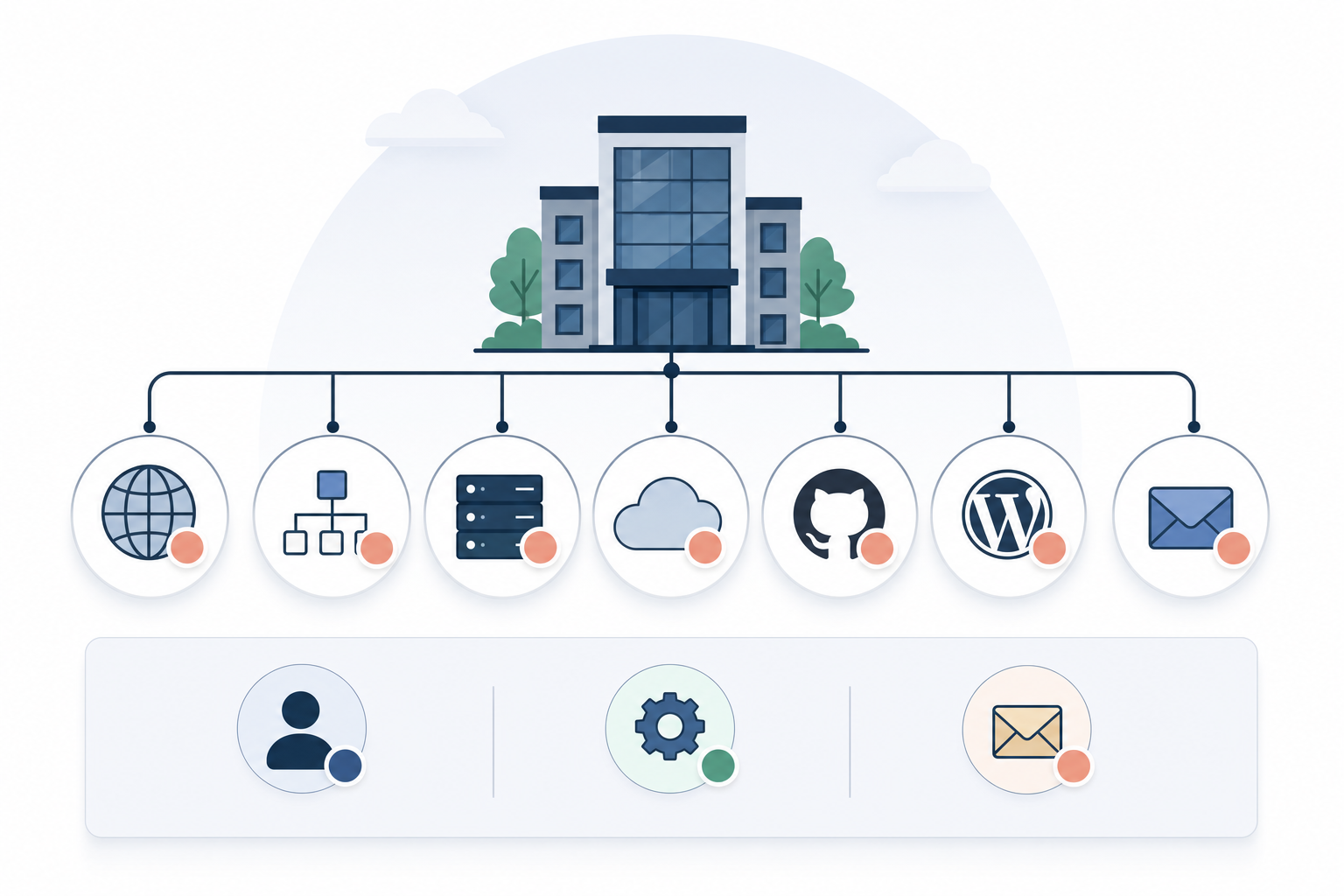
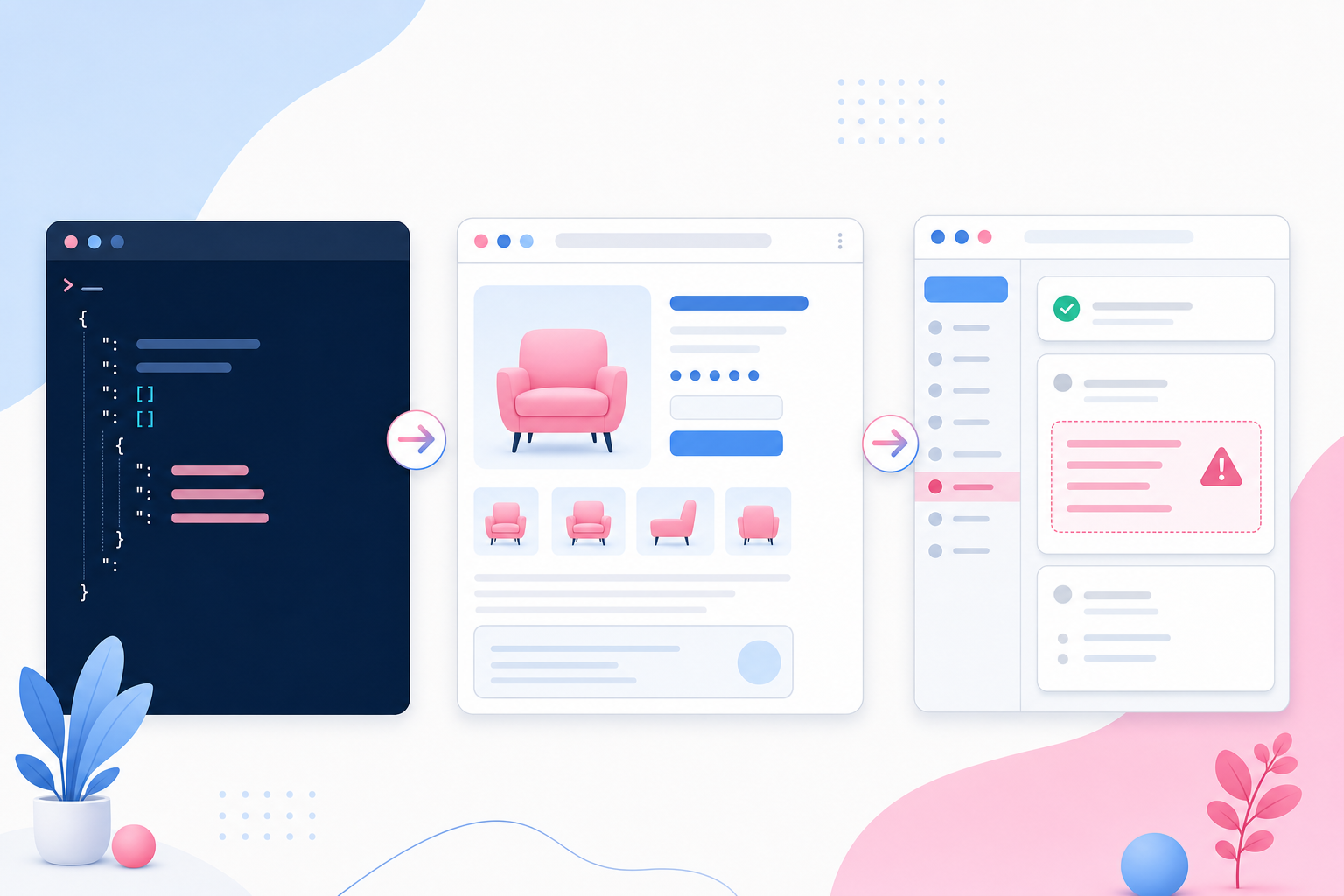
A polished PDF may lack heading structure, a logical reading order and functional form fields, excluding customers and making remediation costly. This article explains when HTML is the better choice and how to specify and test an accessible PDF before publishing.
Suppose a company publishes twelve price lists, product sheets and customer forms over the course of a year, each first completed in Microsoft Word and then exported using “Save as PDF”. In this hypothetical example, a recurring table without header cells or form fields without meaningful names is enough for every new version to inherit the same errors. The document may look correct on screen while still being impossible for a screen reader to interpret, difficult to use on a mobile device and awkward to complete without a mouse. An accessible PDF is therefore more than a technical quality issue: shortcomings can lead to abandoned customer enquiries, more support requests and costly duplication of effort when both the source file and the published version need to be corrected. The format must therefore be chosen before production begins, not when the PDF is already awaiting publication.

Publish content as HTML when readers need to find, understand or act on it
The choice between PDF and HTML should be based on the reader’s task. Information that needs to be found through a search engine, read on different screen sizes, followed step by step or used to complete an action generally works best as HTML. Instructions, terms and conditions, pricing information and frequently asked questions are then easier to update, enlarge and link to directly, while the browser can adapt the content to a small screen without requiring users to pan across a fixed document page. If customers must download a document and browse from the first page to find information that could just as easily have appeared on the web page, the format has created an unnecessary step. This can increase both the risk of abandonment and the need for manual assistance. PDF is more appropriate when a fixed page layout provides clear value, such as for printing, archiving, signing or preserving a specific document version. However, this does not prevent the core content from also being provided in HTML. When both formats are published, a designated editor must specify the version date and identify which version is the authoritative source. Otherwise, an outdated PDF may continue to circulate after the web page has been updated.
An accessible PDF requires document structure, not just the right appearance
An accessible PDF is built on a machine-readable tag structure that identifies each piece of content and the order in which it should be presented to assistive technologies. Large, bold text does not automatically become a heading simply because it looks like one. Delivery requirements should cover the document title, primary language, correctly marked heading levels, paragraphs, lists, links and images. They should also reference PDF/UA, the ISO standard describing how accessible PDF documents should be structured, and the relevant WCAG requirements maintained by W3C. Data tables need identified header cells that are correctly associated with their data cells, while tables used only to position text in columns often create a reading order that is difficult to understand. In forms, every field must have a programmatic name that assistive technology can announce, and users must receive instructions, information about required fields and understandable error messages. A blank line after the words “Customer number” is not a functional form field. Scanned documents require OCR—optical character recognition that makes an image of text searchable and readable by assistive technology—but incorrectly recognised characters, language settings, reading order and tags must still be checked afterwards.

Create an accessible PDF from the right source document
Anyone creating an accessible PDF should begin with the source file. Otherwise, heading styles, lists, tables and image descriptions will need to be recreated manually after every export. In Microsoft Word, this includes using built-in styles in a logical hierarchy, specifying the document title and language, creating proper bulleted lists and marking table header rows instead of simulating structure with larger text, tabs or blank lines. During export, the option that preserves document structure and tags must be enabled. However, a tagged export is only a starting point and does not prove that heading levels, tables or the reading order are correct. If the same type of error must be repaired in Adobe Acrobat Pro after every update, the underlying problem usually lies in the template, source document or export workflow. Manual post-processing then becomes a recurring cost and source of errors. A shared document template with concise instructions for editors makes PDF accessibility work more predictable and enables multiple employees to produce new versions without starting from scratch.
Automated checks find structural errors—manual testing determines whether the document is usable
PAC and the accessibility checker in Adobe Acrobat Pro can identify many testable errors, including missing tags, an incorrectly specified language, empty elements and certain problems in tables or forms. The review should also confirm that the document title appears in the window, that the correct primary language is specified and that longer documents contain bookmarks when their length and structure make bookmarks useful. A representative section should then be reviewed with a screen reader. Headers and footers should not be repeated disruptively, multi-column text should be announced in the correct order, and link text should remain understandable when presented out of context. Forms should be tested using only a keyboard, while magnification and reflow—the rearrangement of content to fit a narrower viewing area—show whether readers can access the text without unreasonable horizontal movement. Pay particular attention to the first page, table of contents, tables, footnotes and validation errors. A successful automated test must therefore never be the only acceptance criterion. A tool can detect that alternative text exists, but it cannot determine whether the text communicates the image’s purpose or whether the document’s reading order makes sense.
How to specify requirements for an accessible PDF
The phrase “delivered as a WCAG-compliant PDF” is too vague because it does not specify which properties the file must contain, which tests must be performed or who is responsible for correcting non-conformities. Instead, state that the deliverable must be tagged, meet the agreed PDF/UA and WCAG requirements, and include a verified title, language, heading structure, reading order, links, tables, images and any form fields. Also request the accessible source template, instructions for future updates and a report covering both automated and manual reviews, ensuring that the working method is not lost when the document is handed over. The supplier should be able to demonstrate how the structure is maintained from Word or Adobe InDesign through export and final checks in Acrobat and PAC. It is not enough to refer to contrast, graphic design or an enabled export setting. This is particularly valuable when planning recurring documents for 2026, as a clear acceptance process reduces the risk of the same shortcomings carrying over into the next version and needing to be corrected under time pressure after publication.
The criteria that determine whether to choose HTML or an accessible PDF
Start with what readers need to do with the content, not which format happens to be easiest for internal production. Then assess whether the solution works with a keyboard, screen reader and magnification, as well as on small screens. The following criteria provide communications managers with a practical basis for both choosing a format and commissioning the work.
Choose HTML when content needs to be found, understood or used to take action
HTML is generally the right primary format when information needs to be found through search, read on a mobile device or combined with forms, navigation and links to the next step. For example, a price list that changes regularly is easier to keep current as web content, while a dated PDF can be offered as a print-friendly version. PDF is more suitable as the primary format when a stable document version, download or precise pagination is part of the genuine requirement.
Indicator: Check that the format decision is based on the customer’s task and situation, not on the organisation already having a Word template.
Require semantic structure in the PDF
Semantic structure means that the file can distinguish a heading from a paragraph, a list from body text and a table header from a regular data cell. This information allows screen-reader users to move between headings, understand the table and have links presented meaningfully. Good contrast and clear typography help many readers, but they cannot replace tags, language settings or a logical reading order.
Indicator: Be cautious if the supplier mainly talks about design, contrast or having enabled the tagged PDF export option.
Check the entire production workflow, not just the final file
Accessibility is affected as soon as the editor selects a style, builds a table, places an image or writes link text in the source document. If these elements are correct from the outset, the export can preserve much of the structure and the subsequent review can focus on genuine issues rather than extensive remediation. A sustainable workflow must also cope with a price being changed or a section being added without requiring the document’s tag tree to be rebuilt manually.
Indicator: A well-planned delivery describes the entire path from the template and source document to export, quality assurance, approval and the next update.
Combine automated checks with manual usability testing
Automated tools provide an efficient first filter and can highlight issues such as a missing document title, untagged content and certain formal PDF/UA errors. However, they cannot understand whether the link text “Read more” leads to the right place, whether an image description explains a chart’s message or whether a footnote appears at a meaningful point in the reading order. Manual testing with a keyboard and screen reader is therefore necessary to assess practical usability.
Indicator: Check that the test plan names both the tools and specific test activities, including screen-reader testing, keyboard navigation, zoom and reflow.
Provide an equivalent alternative when PDF must be used
Legal, archival or practical needs may justify using a PDF, but they do not automatically mean that the PDF must be the customer’s only route to the information. Essential terms, contact options and actions can often be published in HTML, with the dated PDF version provided as a supplementary download. This solution requires clear version management so that customers do not encounter different prices, dates or instructions in the two formats.
Indicator: Raise a warning if business-critical information is available only in PDF and there is no plan for accessibility, updates, version ownership or support for customers who cannot use the document.

Start here: make your customer documents accessible
-
Choose HTML as the primary format
Publish information that is updated frequently or used directly online as HTML in your CMS, such as WordPress, and offer a PDF when customers have a clear need for a fixed layout, download or print version. Ensure that every web page has a clear heading hierarchy, descriptive links and a permanent URL that can be shared directly to the relevant content. This prevents editors from having to make minor factual changes in several document files while giving customers a format that adapts more easily to mobile devices, magnification and screen readers.
-
Build an accessible document template
Create a shared Microsoft Word template with correct heading styles, proper lists, marked table headers, a document title and the correct language. Add concise instructions in or alongside the template explaining how editors should write link text, handle images and avoid using empty paragraphs or tables as layout tools. Then export with document tags enabled and check the result, as even a well-built template can be used incorrectly or affected by complex design.
-
Check and correct the PDF structure
Open each PDF in Adobe Acrobat Pro and use the accessibility checker, Tags panel and Reading Order tool to review headings, links, tables, form fields and alternative text. Also run PAC as a separate check of machine-testable requirements and document any issues that require manual assessment. Ideally, recurring problems should be corrected in the source file before a new export is created. Otherwise, changes made directly to the final file may disappear when the next version is produced.
-
Test HTML with automated and manual checks
Run axe DevTools or WAVE on the document page to identify issues such as a broken heading hierarchy, contrast problems, form fields without labels and images without text alternatives. Then navigate the entire flow with a keyboard and review key sections with a screen reader such as NVDA, as automated tools cannot determine whether instructions are understandable or whether focus moves in a logical order. Also test the page on a small screen and with high magnification to ensure that the PDF content has not been replaced by a web page that only works in a wide desktop view.
-
Introduce a publishing gate with clear ownership
Add the format decision, template use, automated review, manual testing and a named approver to your standard workflow, such as in Microsoft Planner, Trello or the CMS publishing process. The publishing gate should apply to new documents and major updates, with a clear process for resolving issues before the material becomes available to customers. When ownership and evidence of completed tests accompany the document, accessibility becomes part of the deliverable rather than an uncertain correction deferred until later.
Begin with the documents that the largest number of customers need or that are used in important customer interactions, then apply the same template and review workflow to the rest. Document recurring errors so that the next version is correct in the source file rather than repaired after export. An experienced team or knowledgeable partner approaches the work in the same way: first make the right choice between HTML and an accessible PDF, then establish a reproducible production and testing workflow that the organisation can manage itself.